Homerun Forge Controls
Swing, move, and open the right HUD menus on PC, phone, tablet, and controller.
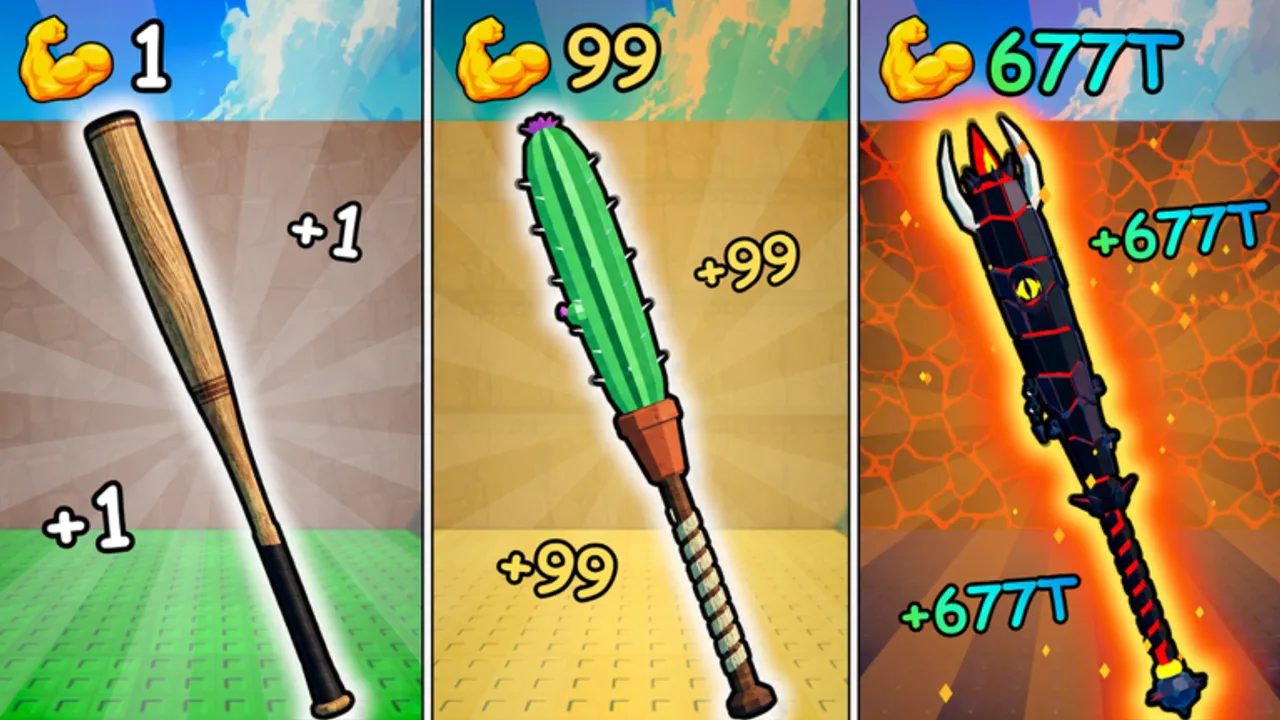
Smooth controls turn +1 Homerun Forge from a clumsy click-fest into a clean train → smash → forge loop. This controls guide covers how to swing on PC, mobile, and console, which HUD icons matter, and how to move efficiently between pitching machines, stage walls, and the forge station in PrimeLoop Studio’s Roblox experience.
If you are brand new, pair this page with Getting Started. Once swings feel natural, spend your time on Training and Strength, How to Forge Bats, and Stage Progression instead of fighting the UI.
Core actions you need
Regardless of device, every productive session uses the same verbs:
- Move between the training area, the active stage wall, and the forge.
- Swing / attack at pitching machines (strength) and at walls (loot).
- Interact / open UI for inventory, forge, codes, and shops.
- Equip a stronger bat after a good roll.
- Collect loot sparks after a wall breaks so materials are not left on the floor.
Master those five and the rest of the wiki’s strategy guides become usable.
PC controls and swing tips
On keyboard and mouse, use standard Roblox movement (WASD) and camera look with the mouse. Swing with left click (or the on-screen attack bind the experience shows). Sprint with Shift when the layout supports it so trips from machine to wall stay short.
PC swing tips:
- Face the pitching machine or wall squarely before holding a swing rhythm — angled cameras waste hits.
- Keep the cursor stable; frantic camera flicks make timing feel worse than it is.
- After a wall breaks, sweep the camera across the loot sparks before sprinting to the forge.
- If input feels delayed, check ping and hop to a less crowded server (max eight players).
- Use number keys or the hotbar if the game parks consumables there after a code redeem.
Open inventory and forge from the HUD buttons on the screen edges rather than hunting keybinds that may change after patches. When in doubt, click the labeled icon.
Mobile controls and swing tips
Phones and tablets use virtual joysticks plus an on-screen swing / attack button. Many players miss Codes, Forge, or Inventory because those icons sit behind a chevron, gear, or side tab after load.
Mobile tips:
- After joining, tap every edge icon once so you know where Codes, Inventory, and Forge live on your device resolution.
- Park your thumb near the swing button during machine training; lift only to reposition.
- Use shorter camera pulls — oversized pinch-zooms make wall targeting harder.
- Play in landscape when possible for a wider view of the route between machine, wall, and forge.
- Disable aggressive battery savers if swing input drops frames; incremental games feel unfair on stutter.
Mobile progression is identical to PC. The loop does not change — only button positions do.
Console / controller tips
Controllers use the left stick to move, right stick for camera, and the face-button attack for swings (typically the same bind Roblox uses for tool activation). Shoulder buttons may open menus depending on the live build.
Console tips:
- Recenter the camera before each wall so your swing arc hits center mass.
- Learn which face button opens the experience’s custom HUD versus Roblox’s system menu — do not mash both.
- Sit closer to the forge when inventory sorting so you are not walking while a menu is open.
- If aim drift appears, recalibrate or lower look sensitivity in Roblox settings.
Friends on mixed platforms can share a server (up to eight), but your bats, strength, and loot remain personal.
HUD icons that matter
Exact art can shift after updates, but productive players always locate these:
| HUD target | Why you open it | Related guide |
|---|---|---|
| Codes / Gift / Twitter | Redeem free materials and boosts | Codes Hub |
| Inventory / Bats | Equip upgrades, scrap junk | Best Bats, Tier List |
| Forge | Spend loot on new bats | How to Forge |
| Shop / Gamepass (optional) | Only buy power-relevant upgrades | Gamepasses |
| Settings | Graphics, volume, sometimes codes nested inside | — |
If you cannot find Codes on mobile, expand side menus before assuming none exist. Many +1 Forge layouts hide redeem behind Settings.
Movement loop: machines → walls → forge
Think of the hub as a triangle:
- Pitching machines — stand in range, swing until strength ticks up. Details in Training and Strength.
- Stage walls — walk to the farthest wall you can break quickly, smash, collect loot. Decision rules in Stage Progression.
- Forge station — return with a full bag, roll with intent, equip if power rose. Steps in How to Forge Bats.
Route tips:
- Finish a training burst before a long walk to a far wall so you do not arrive underpowered.
- Do not forge with half a bag if the next wall is still easy Farm — fill materials first.
- After a big Push unlocks a new bracket, Farm one bag there before sprinting back to forge spam.
- Memorize landmarks (machine cluster, wall line, forge glow) so you stop getting lost between menus.
Printed checklists for this triangle also live on the Tools Hub.
Swing quality checklist
Use this when a wall “feels wrong”:
- Am I aiming center mass?
- Is my equipped bat actually the highest power I own? (Best Bats)
- Did strength stall because I forgot to train?
- Is lag faking weak hits?
- Am I on a wall that should be Reforge / Retrain instead of Push? (Stage Progression)
Controls cannot fix a bat that is two tiers too low — but bad camera and missed loot can make a correct bat feel weak.
Accessibility and comfort
Take breaks during long machine sessions. Remap Roblox movement if you need left-hand friendly layouts. Lower graphics if swing frames drop. Parents helping a child can read this page aloud while the player focuses on the swing button — the Getting Started checklist covers the rest in plain language.
What not to do
- Do not hold swing while sprinting past loot sparks.
- Do not open three menus at once and forget which bat is equipped.
- Do not assume console binds match a YouTube PC short pixel-for-pixel.
- Do not install random “auto swing APKs” — see the safety notes on the Scripts Hub.
Practice plan for your next session
- Join, locate Codes / Inventory / Forge icons, redeem codes.
- Ten focused minutes on machines with stable camera.
- Clear one Farm wall, collect every spark, forge with a goal from Best Bats.
- Equip upgrades, Push if the wall is now short, otherwise retrain.
- Stop on a win; note any HUD icon you still cannot find and recheck after the next update.
Clean inputs make every other Homerun Forge guide work better. When controls feel automatic, return to the Guides Hub and spend attention on forging and stages instead of the thumbstick.
Frequently Asked Questions
Quick answers to the most common questions.
What button do I press to swing in Homerun Forge?
On PC use left click or the on-screen attack bind. On mobile tap the swing button. On console use the face-button attack. Exact labels can shift slightly after patches.
Where is the Codes button on mobile?
Check the HUD edges and any chevron, gear, or Settings tab. Many layouts nest Codes inside a side menu after load.
Why do my swings feel delayed?
High ping, crowded servers, or low frames can add input lag. Hop servers, lower graphics, and confirm you are aiming at the machine or wall center.
Is the control scheme different on console?
Movement and swing use controller sticks and face buttons, but the train-smash-forge loop is the same as PC and mobile.